画像の表示手法 : Modal について

2026/04/02

概要

写真をサイトに掲載する際、出来るだけ高解像度の画質にしたくなるが高解像度=サイズ大となり、閲覧者のネット契約が例えばパケット従量制だとパケットを消費させてしまう。画像の表示速度も遅くなる。

皆が定額の高速ネット環境とは限らない。

自分のカメラでは最も解像度の高い設定にはしていないが撮影した画像はjpgに圧縮しても2MB程度になる。これを30枚表示すると60MBになる。

ということでGeminiと相談し、最初にサムネイルだけを表示して本画像はクリックしてモーダルウィンドウ*で表示する方式を試した。

最初に表示するのはサイズの小さいサムネール画像にしてクリックすると本画像を表示させると、サイズの大きな画像はクリックしたものだけ読み込まれる。

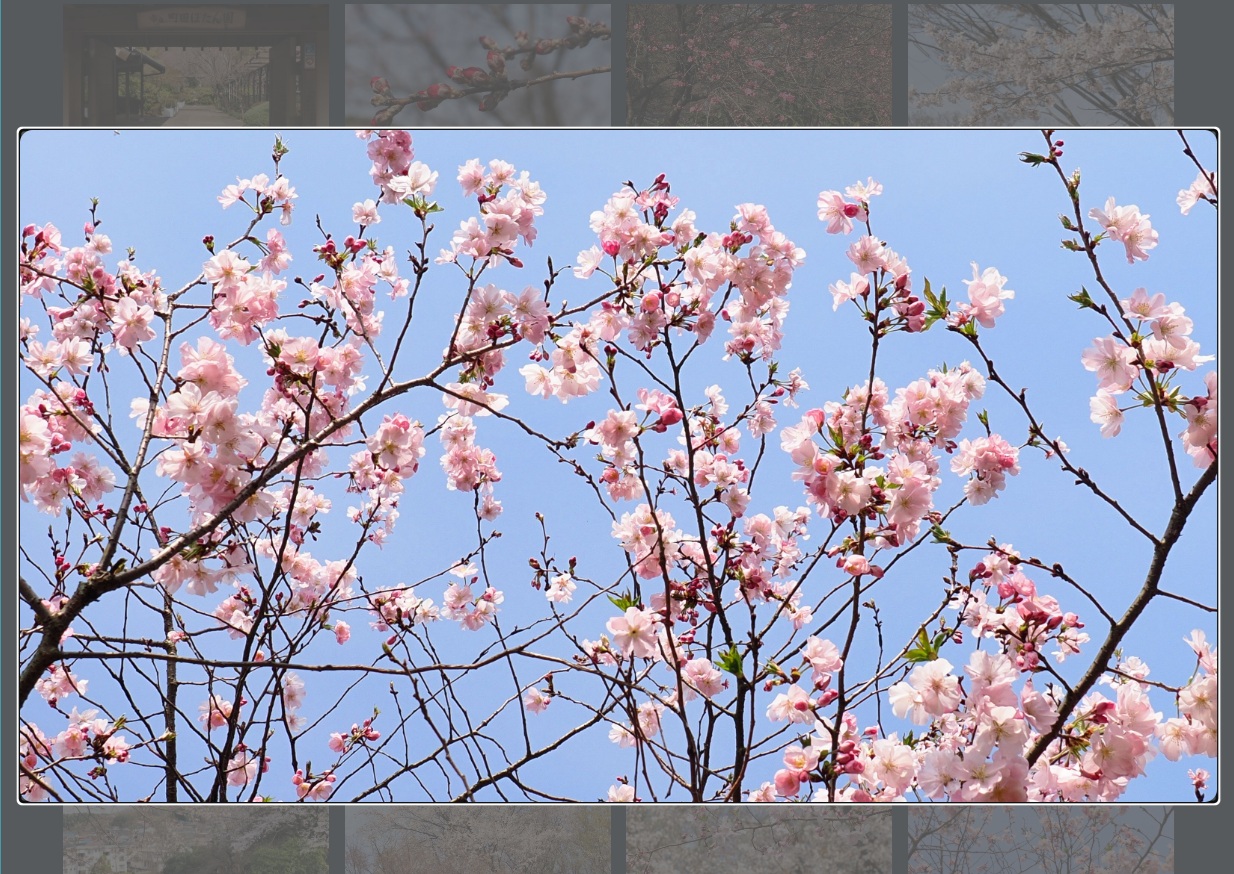
*モーダルウィンドウ(Modal Window)とは、Webサイトやアプリで、画面の最前面に表示して、閉じるまで背景の操作を強制的に制限する小窓(サブウィンドウ)のこと。

検索した時など観たいページの前に出て邪魔をするウィンドウ方式、これを利用しようというわけである。

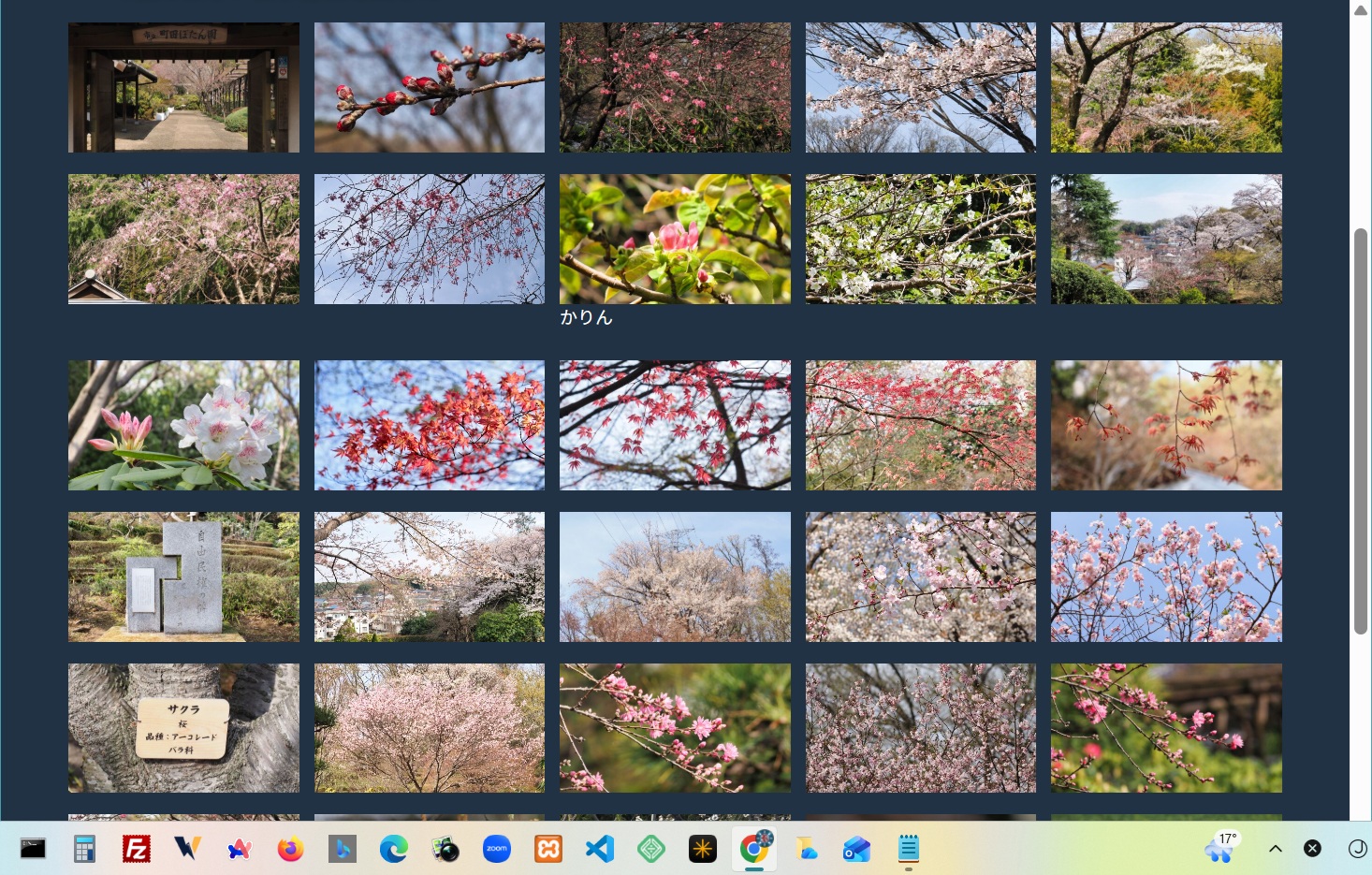
サムネイル

モーダルウィンドウ

表示用 : CSS , HTML , JavaScriptコード

プログラム概要 : 表示する画像でサムメイルを表示。画像はサムネイル用とモーダル表示の2種類を準備する。

画像ファイル例 : P3302391.jpg
用途ファイル名サイズ大きさ
サムネイルP3302391-thumb.jpg77.5KB500 x 281
モーダル表示P3302391-full.jpg1.07MB2732 x 1537

CSS : imageplay.css

/* 1. ダイアログ自体の余白と枠線を消す */ #photo-modal { padding: 0; /* 内側の余白をゼロにする */ border: none; /* 標準の黒い枠線を消す */ background: transparent; /* 背景を透明にして画像だけを浮き立たせる */ /* 画面からはみ出さないための設定 */ max-width: 95vw; max-height: 95vh; overflow: hidden; /* はみ出しをカット */ } /* 2. 画像の下にできる数ピクセルの隙間を消す */ #photo-modal img { display: block; /* inline要素からblock要素に変える(重要!) */ width: 100%; height: auto; max-height: 95vh; /* 画面の高さに合わせる */ object-fit: contain; /* 比率を維持 */ } /* 3. (お好みで)角を少し丸くしたり、影をつけたい場合 */ #photo-modal img { border-radius: 8px; /* 角を丸くする */ box-shadow: 0 10px 30px rgba(0, 0, 0, 0.5); /* 影をつけて立体感を出す */ } #modal-img { cursor: zoom-out; /* 「縮小」を意味する虫眼鏡アイコンになります */ } /* ギャラリー全体のスタイル */ .gallery { display: grid; grid-template-columns: repeat(auto-fill, minmax(150px, 1fr)); gap: 10px; } .gallery p { color:white; font-size:12px; } .thumb { width: 100%; aspect-ratio: 16 / 9; /* 統一感のある比率 */ object-fit: cover; cursor: pointer; } .item p { color:white; font-size:12px; margin-top:-5px; } /* 拡大された画像の transition 名を固定(JSで動的に割り当てるため、CSSでは1つ用意) */ .expanded-image { view-transition-name: active-image; } /* モーダルの背景を暗く */ dialog::backdrop { background-color: rgba(0, 0, 0, 0.9); } dialog { padding: 0; border: none; background: none; overflow: visible; } /* 拡大された画像(dialog内のimg)に transition 名を固定で付ける */ #photo-modal img.expanded-image { view-transition-name: active-image; } /* モーダルの背景(backdrop)をゆっくりフェードインさせるアニメーション */ @keyframes fadeIn { from { opacity: 0; } to { opacity: 1; } } #photo-modal::backdrop { background-color: rgba(100, 100, 100, 0.8); animation: fadeIn 1.5s ease-out; /* 背景のフェードイン */ }

HTML

<!DOCTYPE html> <html> <head> <meta name="viewport" content="width=device-width,initial-scale=1.0"> <meta http-equiv="Content-Type" content="text/html;charset=UTF-8" /> <title>町田ぼたん園の桜</title> <link rel="shortcut icon" href="https://bluebee.heteml.net/parts/akaicon.ico"> <link rel="stylesheet" type="text/css" href="../css2025/akacom5.css"> <link rel="stylesheet" type="text/css" href="../imageplay/imageplay.css"> <script type="text/javascript" src="../js/common.js"></script> <style> </style> </head> <body> <div id="root"> <h1>町田ぼたん園の・<span class="span_sakura">桜</span></h1> <h6>2026/03/30</h6> <div class="text"><p>東京の桜の開花が3月19日に宣言されてから、10日以上が経過し日増しに春爛漫になりつつある。 </p> <p>翌日からしばらく雨天が続くとの予報で、散歩がてら町田ぼたん園に行ってきた。ぼたんの開花にはまだ日数を要するが、園内には様々な種類の桜が開花する。染井吉野のように一斉には開花しないが早咲きの桜がイロハモミジやシャクナゲとともに開花していた。</p> <p>全体としての見ごろは来週と思う。</p> <p>*今回は新しい表示方法を試した</p> </div> <div class="gallery"> <div class="item"> <img src="botan2026_0330/P3302378-thumb.jpg" data-full="botan2026_0330/P3302378-full.jpg" alt="P3302378" class="thumb" loading="lazy" > </div> <div class="item"> <img src="botan2026_0330/P3302380-thumb.jpg" data-full="botan2026_0330/P3302380-full.jpg" alt="P3302380" class="thumb" loading="lazy" > </div> <div class="item"> <img src="botan2026_0330/P3302381-thumb.jpg" data-full="botan2026_0330/P3302381-full.jpg" alt="P3302381" class="thumb" loading="lazy" > </div> <div class="item"> <img src="botan2026_0330/P3302382-thumb.jpg" data-full="botan2026_0330/P3302382-full.jpg" alt="P3302382" class="thumb" loading="lazy" > </div> <div class="item"> <img src="botan2026_0330/P3302384-thumb.jpg" data-full="botan2026_0330/P3302384-full.jpg" alt="P3302384" class="thumb" loading="lazy" > </div> <div class="item"> <img src="botan2026_0330/P3302385-thumb.jpg" data-full="botan2026_0330/P3302385-full.jpg" alt="P3302385" class="thumb" loading="lazy" > </div> <div class="item"> <img src="botan2026_0330/P3302386-thumb.jpg" data-full="botan2026_0330/P3302386-full.jpg" alt="P3302386" class="thumb" loading="lazy" > </div> <div class="item"> <img src="botan2026_0330/P3302388-thumb.jpg" data-full="botan2026_0330/P3302388-full.jpg" alt="P3302388" class="thumb" loading="lazy" > <p>かりん</p> </div> <div class="item"> <img src="botan2026_0330/P3302389-thumb.jpg" data-full="botan2026_0330/P3302389-full.jpg" alt="P3302389" class="thumb" loading="lazy" > </div> <div class="item"> <img src="botan2026_0330/P3302391-thumb.jpg" data-full="botan2026_0330/P3302391-full.jpg" alt="P3302391" class="thumb" loading="lazy" > </div> <div class="item"> <img src="botan2026_0330/P3302393-thumb.jpg" data-full="botan2026_0330/P3302393-full.jpg" alt="P3302393" class="thumb" loading="lazy" > </div> <div class="item"> <img src="botan2026_0330/P3302399-thumb.jpg" data-full="botan2026_0330/P3302399-full.jpg" alt="P3302399" class="thumb" loading="lazy" > </div> <div class="item"> <img src="botan2026_0330/P3302402-thumb.jpg" data-full="botan2026_0330/P3302402-full.jpg" alt="P3302402" class="thumb" loading="lazy" > </div> <div class="item"> <img src="botan2026_0330/P3302403-thumb.jpg" data-full="botan2026_0330/P3302403-full.jpg" alt="P3302403" class="thumb" loading="lazy" > </div> <div class="item"> <img src="botan2026_0330/P3302407-thumb.jpg" data-full="botan2026_0330/P3302407-full.jpg" alt="P3302407" class="thumb" loading="lazy" > </div> <div class="item"> <img src="botan2026_0330/P3302409-thumb.jpg" data-full="botan2026_0330/P3302409-full.jpg" alt="P3302409" class="thumb" loading="lazy" > </div> <div class="item"> <img src="botan2026_0330/P3302412-thumb.jpg" data-full="botan2026_0330/P3302412-full.jpg" alt="P3302412" class="thumb" loading="lazy" > </div> <div class="item"> <img src="botan2026_0330/P3302415-thumb.jpg" data-full="botan2026_0330/P3302415-full.jpg" alt="P3302415" class="thumb" loading="lazy" > </div> <div class="item"> <img src="botan2026_0330/P3302417-thumb.jpg" data-full="botan2026_0330/P3302417-full.jpg" alt="P3302417" class="thumb" loading="lazy" > </div> <div class="item"> <img src="botan2026_0330/P3302418-thumb.jpg" data-full="botan2026_0330/P3302418-full.jpg" alt="P3302418" class="thumb" loading="lazy" > </div> <div class="item"> <img src="botan2026_0330/P3302419-thumb.jpg" data-full="botan2026_0330/P3302419-full.jpg" alt="P3302419" class="thumb" loading="lazy" > </div> <div class="item"> <img src="botan2026_0330/P3302420-thumb.jpg" data-full="botan2026_0330/P3302420-full.jpg" alt="P3302420" class="thumb" loading="lazy" > </div> <div class="item"> <img src="botan2026_0330/P3302422-thumb.jpg" data-full="botan2026_0330/P3302422-full.jpg" alt="P3302422" class="thumb" loading="lazy" > </div> <div class="item"> <img src="botan2026_0330/P3302423-thumb.jpg" data-full="botan2026_0330/P3302423-full.jpg" alt="P3302423" class="thumb" loading="lazy" > </div> <div class="item"> <img src="botan2026_0330/P3302424-thumb.jpg" data-full="botan2026_0330/P3302424-full.jpg" alt="P3302424" class="thumb" loading="lazy" > </div> <div class="item"> <img src="botan2026_0330/P3302426-thumb.jpg" data-full="botan2026_0330/P3302426-full.jpg" alt="P3302426" class="thumb" loading="lazy" > </div> <div class="item"> <img src="botan2026_0330/P3302428-thumb.jpg" data-full="botan2026_0330/P3302428-full.jpg" alt="P3302428" class="thumb" loading="lazy" > </div> <div class="item"> <img src="botan2026_0330/P3302429-thumb.jpg" data-full="botan2026_0330/P3302429-full.jpg" alt="P3302429" class="thumb" loading="lazy" > </div> <div class="item"> <img src="botan2026_0330/P3302430-thumb.jpg" data-full="botan2026_0330/P3302430-full.jpg" alt="P3302430" class="thumb" loading="lazy" > </div> <div class="item"> <img src="botan2026_0330/P3302431-thumb.jpg" data-full="botan2026_0330/P3302431-full.jpg" alt="P3302431" class="thumb" loading="lazy" > </div> <div class="item"> <img src="botan2026_0330/P3302432-thumb.jpg" data-full="botan2026_0330/P3302432-full.jpg" alt="P3302432" class="thumb" loading="lazy" > </div> <div class="item"> <img src="botan2026_0330/P3302436-thumb.jpg" data-full="botan2026_0330/P3302436-full.jpg" alt="P3302436" class="thumb" loading="lazy" > </div> <div class="item"> <img src="botan2026_0330/P3302446-thumb.jpg" data-full="botan2026_0330/P3302446-full.jpg" alt="P3302446" class="thumb" loading="lazy" > </div> <div class="item"> <img src="botan2026_0330/P3302447-thumb.jpg" data-full="botan2026_0330/P3302447-full.jpg" alt="P3302447" class="thumb" loading="lazy" > </div> <div class="item"> <img src="botan2026_0330/P3302449-thumb.jpg" data-full="botan2026_0330/P3302449-full.jpg" alt="P3302449" class="thumb" loading="lazy" > </div> <div class="item"> <img src="botan2026_0330/P3302453-thumb.jpg" data-full="botan2026_0330/P3302453-full.jpg" alt="P3302453" class="thumb" loading="lazy" > </div> <div class="item"> <img src="botan2026_0330/P3302454-thumb.jpg" data-full="botan2026_0330/P3302454-full.jpg" alt="P3302454" class="thumb" loading="lazy" > </div> <div class="item"> <img src="botan2026_0330/P3302459-thumb.jpg" data-full="botan2026_0330/P3302459-full.jpg" alt="P3302459" class="thumb" loading="lazy" > </div> <div class="item"> <img src="botan2026_0330/P3302460-thumb.jpg" data-full="botan2026_0330/P3302460-full.jpg" alt="P3302460" class="thumb" loading="lazy" > </div> </div> <dialog id="photo-modal"> <div class="modal-content"> <img id="modal-img" src="" alt=""> </div> </dialog> <script type="text/javascript" src="../imageplay/imageplay.js"></script> </body> </html>

JavaScript : imageplay.js

// image play 2026.03.31 const modal = document.getElementById('photo-modal'); const modalImg = document.getElementById('modal-img'); const thumbs = document.querySelectorAll('.thumb'); // --- 1. 開く時の処理(前回と同様) --- thumbs.forEach(thumb => { thumb.addEventListener('click', () => { const fullSizeUrl = thumb.dataset.full; const description = thumb.alt; if (!document.startViewTransition) { showModalDirect(fullSizeUrl, description); return; } thumb.style.viewTransitionName = 'active-image'; const transition = document.startViewTransition(() => { showModalDirect(fullSizeUrl, description); }); transition.finished.finally(() => { thumb.style.viewTransitionName = ''; }); }); }); function showModalDirect(url, alt) { modalImg.src = url; modalImg.alt = alt; modalImg.classList.add('expanded-image'); modal.showModal(); } // --- 2. 閉じる時の処理(ここを修正・追加) --- // 画像そのものをクリックした時に閉じる modalImg.addEventListener('click', () => { closeModalWithAnimation(); }); // 背景(黒い部分)をクリックした時も閉じたい場合はこちら modal.addEventListener('click', (e) => { if (e.target === modal) { closeModalWithAnimation(); } }); // 共通の閉じる関数(アニメーション付き) function closeModalWithAnimation() { if (document.startViewTransition) { document.startViewTransition(() => { modal.close(); }); } else { modal.close(); } }

サンプル「2025Season Photos」

2025 Season Photos

アイテム生成プログラム

*追記:一括画像生成 に置き換え******************

実装するには元の画像ファイルから2種類のファイルを準備する必要があり、手作業の簡略化を図る。
例: P3456789.jpg ==>P345678-thumb.jpgとP345678-full.jpg

フォルダー内の画像からサムネイル画像と本表示用画像を生成するpythonコード

import os def generate_gallery_html(): # --- 1. フォルダの指定 --- # 実行時に入力させる(例: images/sakura2024) target_dir = input("画像が入っているフォルダ名を入力してください(例: images): ").strip() # 出力ファイル名 output_file = 'gallery_tags.txt' # 対象とする拡張子 extensions = ('.jpg', '.jpeg', '.png', '.webp') # フォルダの存在確認 if not os.path.exists(target_dir): print(f"エラー: 「{target_dir}」というフォルダは見つかりませんでした。") return html_snippets = [] # --- 2. ファイルのスキャン --- files = sorted(os.listdir(target_dir)) for filename in files: # 指定した拡張子かつ、サムネイル用ではない(-thumbが含まれない)ファイルを元画像とする if filename.lower().endswith(extensions) and '-thumb' not in filename: # 拡張子を除いたファイル名(alt用) base_name = os.path.splitext(filename)[0] # 拡張子 ext = os.path.splitext(filename)[1] # パスの生成(入力されたフォルダ名をそのまま利用) # 例: images/sakura-thumb-01.jpg thumb_src = f"{target_dir}/{base_name}-thumb{ext}" full_src = f"{target_dir}/{base_name}-full{ext}" # HTMLタグの組み立て snippet = f""" <div class="item"> <img src="{thumb_src}" data-full="{full_src}" alt="{base_name}" class="thumb" loading="lazy" > </div>""" html_snippets.append(snippet) # --- 3. 結果の保存 --- if html_snippets: with open(output_file, 'w', encoding='utf-8') as f: f.write('\n'.join(html_snippets)) print(f"--- 完了 ---") print(f"処理したフォルダ: {target_dir}") print(f"生成されたタグ数: {len(html_snippets)}個") print(f"結果は「{output_file}」に保存されました。") else: print("指定されたフォルダ内に、条件に合う画像が見つかりませんでした。") if __name__ == "__main__": generate_gallery_html()

PowerRename

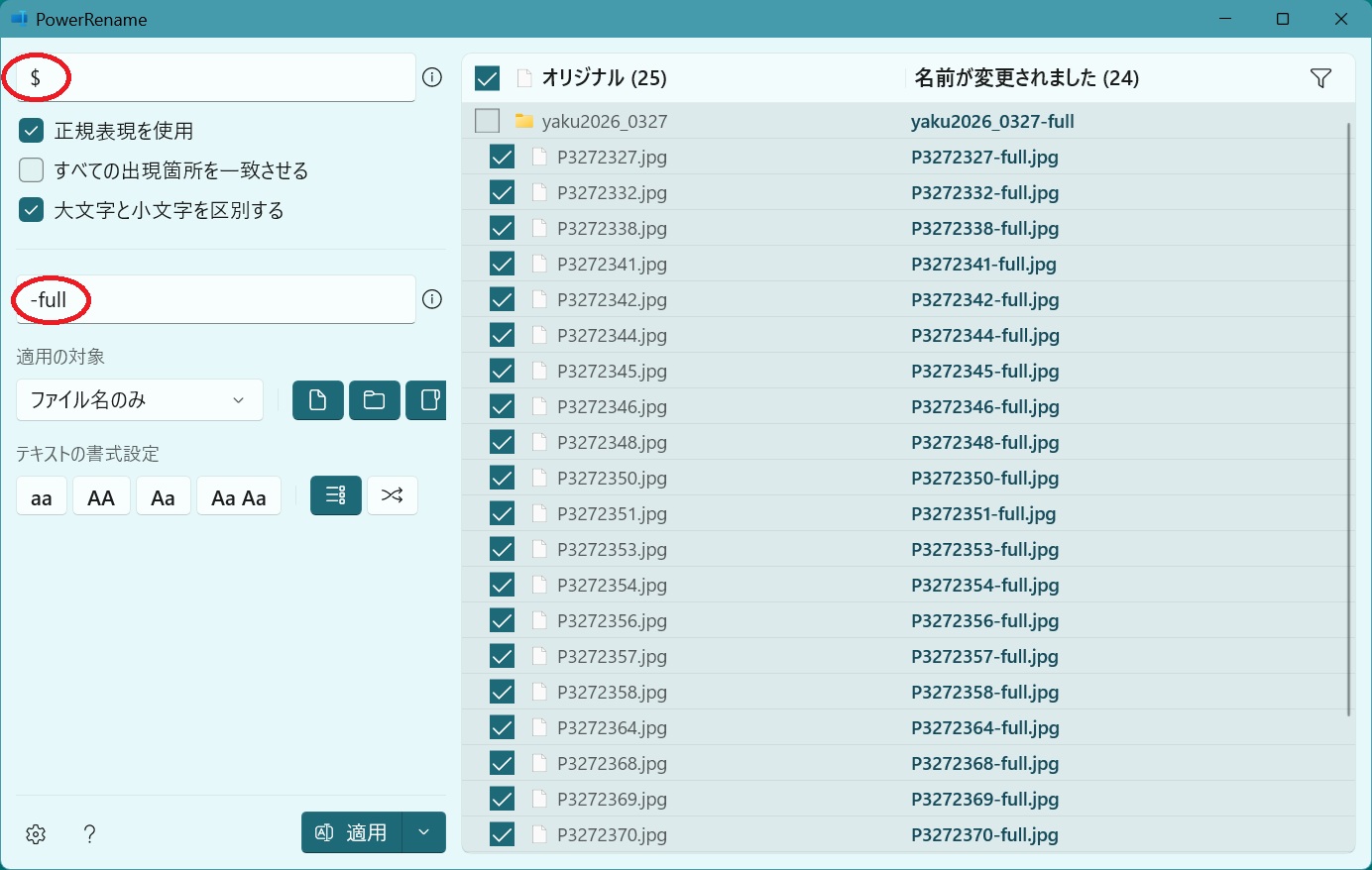
フォルダー内の画像名を一挙に変更するにはWindowsのフォルダーを右クリックしPowerRenameを使う。

$はファイル名の後に追加するという意味。

感想

Geminiは最新のテクニックを提案してくれる。AIを使う以前は苦労したプログラミングでも秒で生成する。それでもプログラミングに興味を持ち、難しいコードには説明を求める。

追記:一括画像生成

ここまで来るとまとめてサムネイル画像と大きく表示するモーダル画像を一度に作成するプログラムを生成してもらいたくなる。Geminiにとっては簡単なことであった。

事前に画像処理ライブラリのインストールが必要 : コマンドフロンプトでpip install Pillowを実行。すでに導入済みだったがupdateした。

デスクトップにoriginal_photosという名前でオリジナル画像を入れて置く。次のpythonコードを実行するとweb_readyというフォルダーに2種類の画像が出力される。

convert_images.py(OneDrive環境)

コマンドプロンプトでpython "C:\Users\bluebee\OneDrive\デスクトップ\convert_images.py"を実行する。

import os from PIL import Image # --- PC環境に合わせた直接指定 --- # OneDrive上のデスクトップパスを確実に指定します desktop_path = r"C:\Users\bluebee\OneDrive\デスクトップ" # 元画像フォルダと出力先フォルダ input_dir = os.path.join(desktop_path, "original_photos") output_dir = os.path.join(desktop_path, "web_ready") # サイズ設定 THUMB_SIZE = (300, 300) # サムネイル FULL_SIZE = (1200, 1200) # モーダル用 # フォルダ作成 if not os.path.exists(output_dir): os.makedirs(output_dir) def process_images(): count = 0 # フォルダ内のファイルをスキャン for filename in os.listdir(input_dir): if filename.lower().endswith(('.jpg', '.jpeg', '.png')): img_path = os.path.join(input_dir, filename) base_name = os.path.splitext(filename)[0] try: with Image.open(img_path) as img: # 1. Full画像の生成 img_full = img.copy() img_full.thumbnail(FULL_SIZE, Image.Resampling.LANCZOS) img_full.save(os.path.join(output_dir, f"{base_name}-full.jpg"), "JPEG", quality=85) # 2. Thumbnail画像の生成 img_thumb = img.copy() img_thumb.thumbnail(THUMB_SIZE, Image.Resampling.LANCZOS) img_thumb.save(os.path.join(output_dir, f"{base_name}-thumb.jpg"), "JPEG", quality=80) print(f"成功: {filename} を変換しました") count += 1 except Exception as e: print(f"エラー: {filename} の処理に失敗しました - {e}") return count if __name__ == "__main__": print(f"--- 画像変換開始 ---") if os.path.exists(input_dir): processed_count = process_images() print(f"\n完了! {processed_count}枚の画像を処理しました。") print(f"保存先: {output_dir}") else: print(f"【確認】デスクトップに 'original_photos' という名前のフォルダが見当たりません。") print(f"探した場所: {input_dir}")

Microsoft Windows [Version 10.0.26200.8117] (c) Microsoft Corporation. All rights reserved. C:\Users\bluebee>python "C:\Users\bluebee\OneDrive\デスクトップ\convert_images.py --- 画像変換開始 --- 成功: P3272327.jpg を変換しました 成功: P3272332.jpg を変換しました 成功: P3272338.jpg を変換しました 成功: P3272341.jpg を変換しました 成功: P3272342.jpg を変換しました 成功: P3272344.jpg を変換しました 成功: P3272345.jpg を変換しました 成功: P3272346.jpg を変換しました 成功: P3272348.jpg を変換しました 成功: P3272350.jpg を変換しました 成功: P3272351.jpg を変換しました 成功: P3272353.jpg を変換しました 成功: P3272354.jpg を変換しました 成功: P3272356.jpg を変換しました 成功: P3272357.jpg を変換しました 成功: P3272358.jpg を変換しました 成功: P3272364.jpg を変換しました 成功: P3272368.jpg を変換しました 成功: P3272369.jpg を変換しました 成功: P3272370.jpg を変換しました 成功: P3272372.jpg を変換しました 成功: P3272373.jpg を変換しました 成功: P3272375.jpg を変換しました 成功: P3272376.jpg を変換しました 完了! 24枚の画像を処理しました。 保存先: C:\Users\bluebee\OneDrive\デスクトップ\web_ready C:\Users\bluebee>
.